Remote VEConfigure · VictronConnect Remote · Remote Console
How to enable VRM Full access on a Victron GX
Full access is a GX setting, not a VRM login. Monitoring can work in Read-only. Changing MultiPlus, ESS or GX settings remotely needs VRM Portal set to Full, plus Technician or Admin rights if you invite someone else.
This setup is the first requirement for remote Victron Energy support. Never send a VRM password.
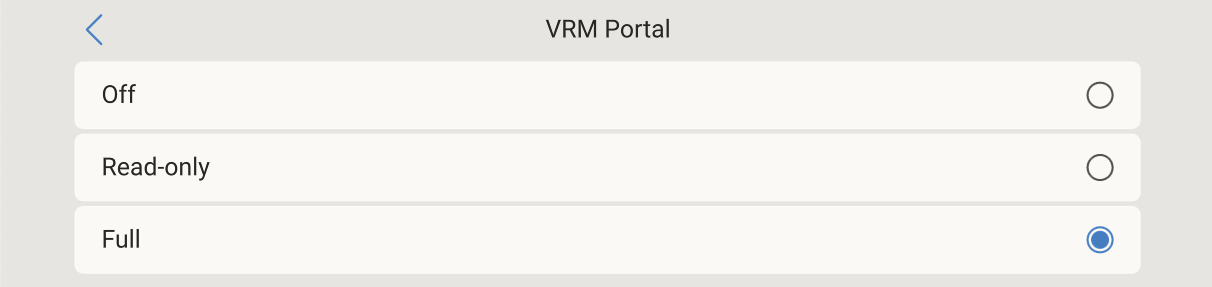
Monitoring works with Read-only. Changing inverter, ESS or GX settings remotely needs the GX VRM Portal mode set to Full (the Victron default). That is a GX setting, not a login.
- On the GX go to Settings → VRM online portal → VRM Portal and select Full. Off stops VRM logging. Read-only still uploads data but blocks the Controls pane, VictronConnect Remote and remote firmware updates.
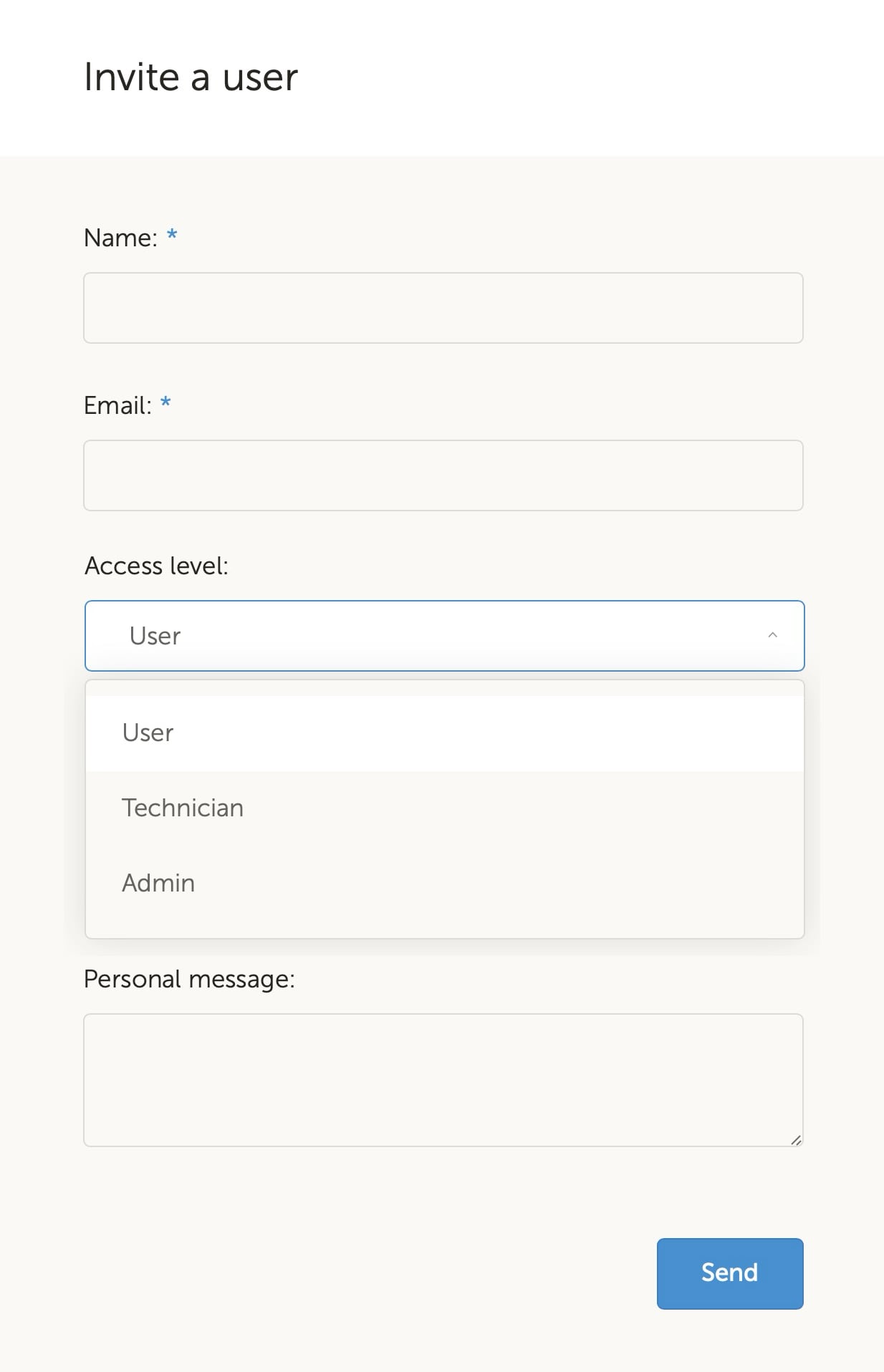
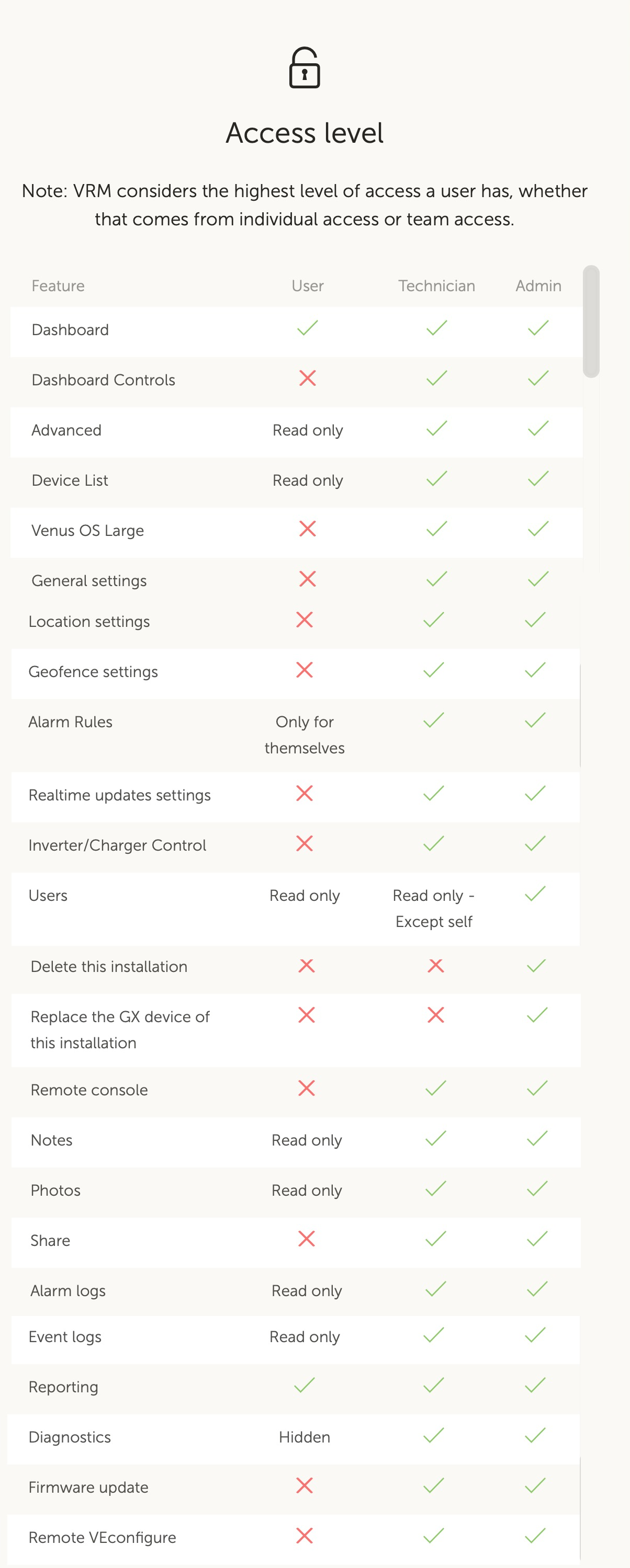
If you invite Global Sun Hub or another technician, use VRM Settings → Users. Technician can run diagnostics, firmware updates, Remote Console and Remote VEConfigure. Admin can also add or remove users. User is read-only. Invite by email — do not share the account password.
With Full access on the GX and Technician rights in VRM, most MultiPlus, Quattro, EasySolar and Multi RS systems can be assessed for remote Victron Energy support. A free pre-check still comes first so you only pay when the work is actually possible.
Common questions
- Is VRM Full access the same as my VRM password?
- No. Full access is the GX menu item Settings → VRM online portal → VRM Portal. A password is your VRM website login. Remote technicians should be invited as users, not given the password.
- What is the difference between User, Technician and Admin in VRM?
- User is read-only. Technician can use diagnostics, firmware updates, Remote Console and Remote VEConfigure. Admin can also add or remove users. Technician is enough for most remote configuration.
- Can you configure my Victron system if Full access is off?
- Usually not. Read-only still allows monitoring. Configuration, VictronConnect Remote and most remote firmware tools need Full. Check compatibility for free before booking.
Next setup steps
Need this Victron system configured remotely?
Once the GX is online in VRM, I can assess remote configuration, ESS setup and diagnostics worldwide. The free pre-check confirms what can be done before anything is charged.
Screenshots and menu names are from Victron Energy product manuals and the VRM website, used here as setup illustrations. Victron, VRM, Cerbo GX, MultiPlus and related names are trademarks of Victron Energy B.V. Global Sun Hub is independent and is not affiliated with Victron Energy.